Using sequoia
Sequoia leverages Open OnDemand (OOD), a system managed by GRIT to connect our HPC resources to commonly used software. OOD is accessed via an online dashboard in your web browser: https://hpc.grit.ucsb.edu
Once at the website, you can use your GRIT user ID and password. The system does not require you to be on campus or use a VPN.
Through OOD, you can use the following software:
- R Studio Server
- Positron Server
- Jupyter Notebook
- VS Code Server
To use any of these, click “Interactive Apps”, then click on your software of choice. Note that Positron Server is technically accessed through Jupyter Notebooks; so to start a Positron Server session, click “Jupyter Notebook”.
Each time you launch an interactive app, you need to specify the following up-front before launching the job:
Partition name: Type
emlab_nodesto use emLab’s private sequoia resources (this should be used in most cases). Alternatively, you can typegrit_nodesto use GRIT’s campus-wide shared resources (note however that Positron Server is only available when usingemlab_nodes, since we have a special license from Posit)Job duration (up to 168 hours): Your interactive session will run for this amount of time, and then shut down (you can cancel jobs before the ending time if you desire)
Number of cores: How many CPU cores you want to use for your interactive session. Currently, we have this set to a maximum of 24 cores per session. Since sequoia is a shared resource, please be considerate of others when requesting cores. If you are unsure of how many cores to use, see Best practices and resource allocation to help you figure this out.
RAM: How much RAM you want to use for your interactive session. Currently, we have this set to a maximum of 256GB per session. Since sequoia is a shared resource, please be considerate of others when requesting cores. If you are unsure of how much RAM to use, see Best practices and resource allocation to help you figure this out.
Please do not enable to “Use GPU” option unless you have already discussed this with Kathy or Robert (it is only available on quebracho for land use projects at this time).
Note that for convenience, your last used settings will be saved for the next time you launch an interactive app.
Once you’ve configured your session, click “Launch”. It may take a few minutes for your session to start up. Once it is ready, you will see a link to open whichever interactive app you selected. Click the link to open the app in a new browser tab.
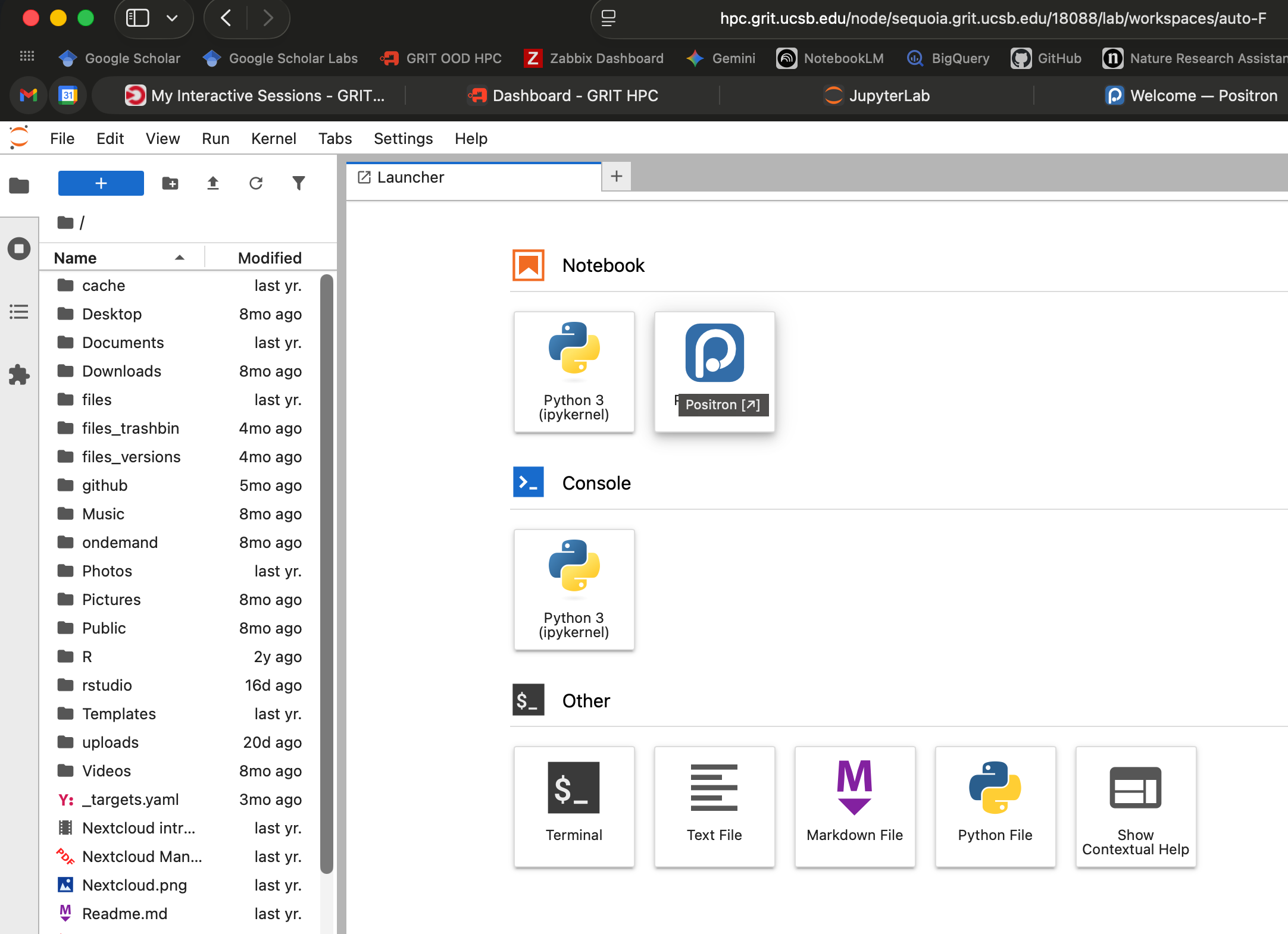
If you wish to use Positron Server, click the link for your Jupyter Notebook session; once this starts, you will see a link in the upper-right corner of the session for Positron under Notebook. Click this to launch Positron Server.
Note that you may use OOD to launch multiple interactive sessions at the same time! They are each still managed through SLURM.
More resources for OOD are available on GRIT’s bookstack: